Hellzerg Optimizer
Every Windows privacy, telemetry and cleanup tweak you keep hunting for, in one portable window.
Hellzerg Optimizer is a free, portable configuration utility for Windows. It collects dozens of privacy, telemetry and performance settings that normally live scattered across the registry, group policy and service manager, and puts them behind simple toggles in one window. There is no installer — you run a single executable as administrator. Version 16.7 is the final release: the project is now deprecated and has been replaced by OptimizerNXT, a YAML-driven command-line successor. This site is an independent guide to what it does, what it needs, how to run it safely, and what comes next.
✓ Free, portable & open source • Windows 7–11 • Deprecated — 16.7 is final
Run as administrator — create a restore point first
Portable
One executable. No installer, no background service.
24 languages
Full multilingual interface, community translated.
Plain-English Guides
Every toggle explained without assuming you already know the registry key behind it.
Tweak Focused
Privacy, telemetry, services, cleaning, network and startup covered tab by tab.
Safety First
Backups, restore points and checksum verification treated as part of the process, not an afterthought.
Honest About Status
The project is deprecated. We say so up front and explain the successor.
What Is Hellzerg Optimizer?
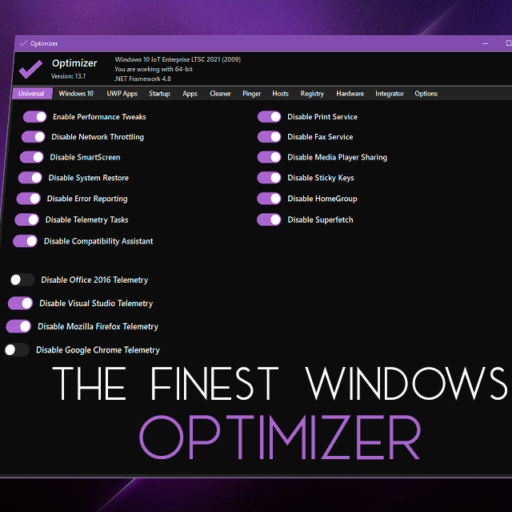
Hellzerg Optimizer — published simply as Optimizer by the developer hellzerg — is an advanced privacy and security configuration utility for Windows. It is described by its author as being especially useful straight after a fresh Windows installation, when you want telemetry, background services and preinstalled apps dealt with before you start using the machine.
It is portable and free. There is no setup wizard, no background service and no installation footprint: you download one executable, run it with administrator rights, and it applies the changes you select. The project is open source under the GPL-3.0 licence, so the exact registry keys, services and policies behind every toggle are inspectable.
The interface is organised into tabs. General covers telemetry, Cortana, automatic updates and system tweaks. Cleaner clears system drive junk and browser profile data. Windows Apps handles UWP removal. Startup manages what launches with the system. Hosts Editor, DNS switching, ping and latency checks, a hardware inspection tool and a file lock handle finder round it out. It ships with full multilingual support across 24 languages.
One thing you should know before anything else: Optimizer is deprecated. Its repository was archived in January 2026 and the author now points users to OptimizerNXT, a YAML-driven command-line tool that covers similar ground through signed configuration packages. Version 16.7, released in August 2024, remains the final desktop release.
hellzergoptimizer.com is an independent information resource. It is not owned, operated, endorsed or approved by hellzerg, by Microsoft, or by any other party. Nothing here is an official distribution channel — always get the software from the project’s own repository.
Portable by design
One executable, no installer, no background service left behind.
Open source
GPL-3.0 licensed, so every tweak can be traced in the source.
24 languages
Full multilingual interface contributed by the community.
Deprecated status
16.7 is final. OptimizerNXT is the successor project.
Independent resource. hellzergoptimizer.com is not owned, operated, endorsed or approved by hellzerg, by Microsoft, or by any other party, and it does not host the software. Always download from the project’s own repository.
Hellzerg Optimizer Features
Privacy & Telemetry Controls
Turn off Windows telemetry, Cortana, Office telemetry for 2016 and newer, and the CoPilot AI integration in Windows 11 and Edge. These are the toggles most people open the tool for, and they are grouped together rather than buried across separate settings screens.
System & Network Performance
Apply tweaks aimed at system responsiveness and network behaviour, disable unnecessary Windows services, and stop automatic Windows 10 and 11 updates. What is available depends on which Windows version you are running.
UWP App Uninstaller
Remove preinstalled Microsoft Store apps that Windows does not let you uninstall through the normal Settings interface. Useful on a fresh install where a long list of bundled apps is sitting there unused.
Cleaner
Clear junk from the system drive and wipe profile data from the major browsers in one pass. It also fixes common registry issues, which is the kind of housekeeping people otherwise reach for a separate tool to do.
HOSTS Editor & DNS Tools
Edit the HOSTS file directly, switch DNS servers from a pre-made list, flush the DNS cache, ping addresses to assess latency, and look up IPs on SHODAN.io — all without leaving the application.
Startup & Integrator
Remove unwanted programs that run at startup, edit system variable paths, add your own items to the desktop right-click menu, and define custom commands for the Run dialog.
Advanced Tweaks & Switches
An Advanced tab unlocked with the /unsafe switch exposes deeper changes such as disabling HPET and OneDrive. Command-line switches also cover disabling Defender from safe mode and running on Windows Server editions.
Automation & Templates
Silent runs are supported through a template file, so the same set of tweaks can be applied repeatedly across machines without clicking through the interface each time.
How Hellzerg Optimizer Works
01 It reads your configuration
On launch it inspects the current state of the relevant Windows settings, services and registry values so the toggles reflect what is actually active.
02 You choose what changes
Nothing is applied automatically. You tick the tweaks you want, tab by tab, and leave everything else untouched.
03 It writes the changes
Selected options are applied through registry edits, service state changes and policy settings — the same places you would edit by hand, done in one pass.
04 You restart to confirm
Many Windows-level changes only take effect after a restart. Rebooting and re-checking is how you verify the tweaks actually landed.
Why People Search for Hellzerg Optimizer
Is it safe to use?
The most common question. It makes real system-level changes, so the honest answer involves restore points and understanding what each toggle does.
Where to download it
People want the genuine executable rather than a repackaged copy from a download aggregator carrying something extra.
Antivirus warnings
Tweaking tools that touch Defender and services trigger detections. Users search to find out whether a warning is a real problem.
Windows 11 support
Whether the tweaks still apply on current builds, and which options quietly stopped working as Microsoft changed things.
Is it still maintained?
It is not. The project is deprecated and the repository is archived — a lot of search traffic is people finding this out.
What replaced it
OptimizerNXT is the successor, and it works very differently: command line and YAML instead of a checkbox interface.
Undoing a tweak
People apply something, dislike the result, and need to know what can be reversed inside the tool and what cannot.
Alternatives
Comparisons against other Windows debloat and privacy tools before committing to any of them.
Hellzerg Optimizer Compatibility
Windows 7, 8, 8.1, 10, 11
Operating system — The documented desktop compatibility range for the final release.
.NET Framework 4.8.1
Framework — Required. On older Windows installs you may need to add it before the app will launch.
2008 – 2022 via /unsafe
Server editions — Windows Server support is documented as available through the /unsafe command-line switch.
Portable — no installer
Install type — A single executable run with administrator rights. Nothing is installed to Program Files.
16.7 — August 2024
Final version — The last desktop release. No further versions are planned for this project.
Deprecated
Project status — Repository archived in January 2026. Superseded by OptimizerNXT.
A note on accuracy: the values above reflect what the project’s own documentation states for the final release. Which specific tweaks are available depends on your Windows version, and Microsoft has removed or changed some of the behaviour older options targeted. Treat the project repository as the source of truth rather than any third-party page, including this one.
How to Use Hellzerg Optimizer
01. Create a restore point first
Before touching anything, make a Windows restore point. This tool changes services, registry values and policies, and a restore point is the fastest way back.
02. Run it as administrator
Most of what it does requires elevation. Without admin rights, toggles either fail silently or refuse to apply.
03. Work one tab at a time
General, Cleaner, Windows Apps, Startup, Hosts, and so on. Applying one tab and restarting is far easier to debug than applying forty changes at once.
04. Read before you toggle
Some options — disabling Defender, stopping updates, removing UWP apps — have consequences you may not want. Understand each one rather than selecting everything.
05. Restart and verify
Reopen the tool after rebooting and confirm the toggles reflect the state you expected. That is your proof the changes applied.
06. Save a template for reuse
If you set up machines regularly, the template file lets you apply the same configuration silently instead of repeating the clicks.
07. Keep a record of what you changed
There is no universal undo. A short note of which toggles you enabled saves a lot of guesswork later.
How to Install Hellzerg Optimizer
Recommended order before your first run
Verify SHA256 → Create restore point → Run as administrator
The application is portable, so there is nothing to install — but it does make real system-level changes. These three steps are what make those changes reversible.
Step 01 — Check the requirements
.NET Framework 4.8.1 and a supported Windows version — 7 through 11 on desktop, or a Server edition using the /unsafe switch. Confirm this first; a missing framework is the usual reason it will not start.
Step 02 — Download from the project only
Get the executable from the official GitHub releases page. Download portals and mirrors repackage installers, and a tweaking tool is a bad thing to get from an unofficial source.
Step 03 — Verify the SHA256 checksum
Each release publishes a SHA256 hash. Compare it against your downloaded file before running anything. This takes fifteen seconds and rules out a tampered copy.
Step 04 — Create a restore point
Do this before the first launch, not after you have already applied something you regret. It is the only reliable rollback for the deeper system tweaks.
Step 05 — There is nothing to install
The application is portable. Put the executable somewhere sensible and run it directly — no setup wizard, no Program Files entry, no background service.
Step 06 — Run as administrator
Right-click and choose Run as administrator. Elevation is required for service, registry and policy changes to take effect.
Step 07 — Apply, restart, verify
Select your tweaks, apply them, restart Windows, then reopen the tool and confirm the state matches what you set. Verification is part of the process, not optional.
Step 08 — Updating — and what comes next
Because 16.7 is the final release, there are no further updates to install. If you want an actively developed tool, look at OptimizerNXT, which works through signed YAML configurations from the command line.
What Hellzerg Optimizer Is Actually Good At
One window instead of forty registry paths
The value here is consolidation. Disabling telemetry, trimming services, removing bundled apps, cleaning browser profiles and editing the HOSTS file are all things you can do by hand. Doing them by hand across a fresh install means a long afternoon of registry paths, PowerShell snippets and half-remembered forum posts.
Optimizer’s contribution is that it puts those same operations behind labelled toggles, keeps them in one window, and lets you repeat the whole set on the next machine through a template file. It is not doing anything Windows forbids — it is doing the tedious parts quickly.
Best on a clean install
The author's own recommendation: run it right after setting up Windows, before you have configured anything you care about.
Everything is inspectable
GPL-3.0 source means you can check exactly what a toggle does instead of trusting a label.
Repeatable across machines
Template-driven silent runs turn a one-off cleanup into a reusable setup step.
Hellzerg Optimizer Comparison
Feature
Hellzerg Optimizer
Doing it manually
Notes
Telemetry & privacy
Grouped toggles in one tab
Registry edits and policy changes by hand
Both end up writing the same settings
Removing bundled apps
Built-in UWP uninstaller
PowerShell commands per app
Some system apps resist removal either way
Service management
Preset lists of services to disable
services.msc, one at a time
Disabling the wrong service can break features
Repeatability
Template file for silent runs
Your own scripts, if you write them
Templates only cover supported options
Reversing changes
Some toggles switch back, not all
Whatever you noted down
A restore point is the reliable route either way
Maintenance status
Deprecated at version 16.7
Windows keeps changing regardless
Newer builds may ignore some older tweaks
Highlights & Things to Consider
Hellzerg Optimizer Highlights
- Free, portable and open source under GPL-3.0 — nothing installed, nothing hidden
- Consolidates privacy, telemetry, cleaning, network and startup work into one interface
- Published SHA256 checksums make it easy to verify you have a genuine build
- Interface available in 24 languages through community translations
- Template files allow silent, repeatable runs across multiple machines
- Especially well suited to the first hour after a clean Windows installation
Things to Consider
- Deprecated — version 16.7 is final and the repository has been archived
- Windows only, and requires .NET Framework 4.8.1 to launch
- Makes real system-level changes; there is no blanket undo button
- Some tweaks stop working as Microsoft changes Windows between builds
- Antivirus software frequently flags tools that touch Defender and services
- Options like disabling Defender or blocking updates carry genuine security trade-offs
Common Hellzerg Optimizer Problems & Solutions
Application will not launch
Likely reason: Missing .NET Framework 4.8.1, or the file is blocked by Windows after download.
Suggested fix: Install the required framework, then right-click the executable, open Properties, and use Unblock if the option is shown.
Toggles do not stick after restart
Likely reason: It was not run with administrator rights, so the changes were never written.
Suggested fix: Close it, right-click and choose Run as administrator, apply again, then restart and re-check.
Antivirus flags the download
Likely reason: Tools that disable Defender and modify services routinely trigger heuristic detections.
Suggested fix: Verify the SHA256 against the release page. If it matches the official build, you are looking at a false positive — but decide for yourself whether to proceed.
A tweak has no effect
Likely reason: The option may not apply to your Windows version or build.
Suggested fix: Availability varies by version. If a toggle does nothing on Windows 11, it likely targets behaviour Microsoft has since changed or removed.
Something broke after applying tweaks
Likely reason: A disabled service or removed app was needed by something else.
Suggested fix: Roll back with your restore point. This is exactly why one is created before the first run.
Cannot find a newer version
Likely reason: There is not one. The project is deprecated and 16.7 is the final release.
Suggested fix: Any site advertising a newer desktop version is not the official project. Look at OptimizerNXT if you want something maintained.
Windows updates turned themselves back on
Likely reason: Feature updates and servicing changes can reset previously applied policies.
Suggested fix: Re-check the relevant toggles after a major Windows update. Some settings need reapplying.
UWP app will not uninstall
Likely reason: Certain system apps are protected by Windows and cannot be removed.
Suggested fix: Not every bundled app is removable. If it fails, that is usually Windows refusing rather than the tool failing.
Hellzerg Optimizer Tips & Best Practices
Tip 01 — Restore point before every session
Not just the first time. Any session where you apply new tweaks deserves its own rollback point.
Tip 02 — Verify the checksum, every time
The SHA256 is published for a reason. Comparing it is the single best defence against a tampered copy.
Tip 03 — Change a little, restart, check
Batches of five changes are debuggable. Batches of fifty are not. Restart between groups.
Tip 04 — Leave Defender alone unless you must
Disabling built-in protection is a real trade-off, not a free performance win. Only do it if you have a specific reason and a replacement.
Tip 05 — Write down what you toggled
There is no universal undo. A plain text note of your choices is worth more than memory three months later.
Tip 06 — Plan for the deprecation
If this is part of a workflow you repeat, start looking at OptimizerNXT now rather than when something finally breaks.
Complete Hellzerg Optimizer Guide
Who this tool is for
Hellzerg Optimizer suits people who set up Windows machines and want the privacy and housekeeping pass done quickly: someone rebuilding their own PC, a technician preparing several machines, or a user who simply wants telemetry and bundled apps dealt with in one sitting. It is less suitable for someone who wants to click everything and hope for the best. Every toggle in it corresponds to a real system change, and the tool assumes you have some idea of what you are switching off.
What it actually changes
Under the labels, the operations are ordinary Windows administration: registry values, service startup states, group policy settings, scheduled tasks, HOSTS file entries and package removal. Nothing exotic is happening. The tool’s contribution is that it knows where all of those live and can set them consistently. Because it is open source under GPL-3.0, anyone who wants to confirm what a specific toggle does can read the code rather than take the label on trust.
Requirements and the portable model
You need Windows 7 through 11 on desktop, or a Server edition run with the /unsafe switch, plus .NET Framework 4.8.1. There is no installation step: the download is a single executable that you run with administrator rights. That portability is genuinely convenient — you can carry it on a USB drive and use it on a machine you are setting up — but it also means no uninstaller and no automatic update mechanism.
Safety, and being realistic about it
This is where most of the honest discussion sits. The tool can disable Windows Defender, stop automatic updates, and switch off services that other features depend on. Each of those is a legitimate choice in some contexts and a bad idea in most. Create a restore point before the first run, apply changes in small groups, restart between groups, and keep a note of what you enabled. Antivirus detections on tools like this are common and usually heuristic, but verifying the published SHA256 against your download is the step that actually tells you whether the file is genuine.
The deprecation, and what it means for you
Version 16.7 was released in August 2024 and is the final desktop release. The repository was archived in January 2026 and the author now directs users to OptimizerNXT. If you are already running Optimizer and it works for you, nothing breaks overnight — but there will be no fixes when a future Windows update changes behaviour a tweak depends on. Treat it as a tool with a fixed end date rather than an ongoing part of your setup.
OptimizerNXT, the successor
OptimizerNXT is a command-line tool driven by YAML configuration files. Instead of ticking boxes, you describe the tweaks, services, registry changes, DNS settings, startup entries and scripts you want in a configuration file and run it. The project describes a hub of curated YAML packages that are cryptographically signed, with unsigned files rejected, and states that it runs locally and does not collect user data. It is a different shape of tool — better for automation and repeatability, less approachable if you liked the visual checklist.
Before you decide
Two closing points. First, no tweaking utility makes a slow machine fast; what these tools actually do is remove telemetry, background work and clutter, and the difference you feel depends entirely on how cluttered the starting point was. Second, this website is an independent guide. It is not affiliated with hellzerg or with Microsoft, and it does not host the software. Download from the project’s own repository, verify what you download, and make your own call on each toggle.
Quick reference
- What it is: portable Windows privacy & tweak utility
- Platform: Windows 7, 8, 8.1, 10, 11
- Needs: .NET Framework 4.8.1
- Install: none — single portable executable
- Licence: free, open source (GPL-3.0)
- Final version: 16.7, August 2024
- Status: deprecated — see OptimizerNXT
At a glance
24 languages 0 installers to run
Before you run it. This tool changes services, registry values and policies. Create a Windows restore point first, verify the published SHA256 of your download, and apply changes in small groups so you can tell what caused what.
Hellzerg Optimizer Download & Resources
Hellzerg Optimizer Resources
The official project repository — releases, source, changelog, FAQ and the published SHA256 checksums. Archived and read-only, but complete.
Installation Guide
The full first-run walkthrough on this page: requirements, checksum verification, restore point and elevation.
OptimizerNXT — Successor
The actively developed replacement: a YAML-driven command-line tool from the same author, using signed configuration packages.
Download safely. Use the official repository only. This website does not host the software and never will. Download portals repackage installers, and a utility that modifies services and disables security features is exactly the wrong thing to obtain from an unofficial mirror. Verify the published SHA256 hash against your downloaded file before running it, confirm your Windows version is supported, and remember that version 16.7 is the final release — any site advertising something newer for the desktop app is not the genuine project.
Hellzerg Optimizer Frequently Asked Questions
What is Hellzerg Optimizer?
It is a free, portable configuration utility for Windows, published as Optimizer by the developer hellzerg. It groups privacy, telemetry, performance, cleaning, network and startup settings behind toggles in a single window, so changes that normally require registry edits and service management can be applied in one pass. It is open source under the GPL-3.0 licence.
How does Hellzerg Optimizer work?
On launch it reads the current state of the Windows settings it manages, so the toggles show what is already active. You select the changes you want, and it applies them through registry values, service states and policy settings — the same places you would edit manually. Many of those changes only take full effect after a restart.
What are the main Hellzerg Optimizer features?
Telemetry and Cortana controls, Office and Edge telemetry options, stopping automatic updates, disabling unnecessary services, a UWP app uninstaller, a system and browser cleaner, registry fixes, HOSTS file editing, DNS switching and flushing, ping and latency checks, startup management, a hardware inspection tool, and right-click menu integration.
Is Hellzerg Optimizer easy to use?
The interface is straightforward — tabs and checkboxes, in 24 languages. The judgement is the hard part. Some toggles disable Windows Defender or block updates, and those have real consequences. Easy to operate, but it expects you to understand what you are switching off rather than selecting everything at once.
What systems support Hellzerg Optimizer?
Windows 7, 8, 8.1, 10 and 11 on desktop, plus Windows Server 2008 through 2022 using the /unsafe command-line switch. It also requires .NET Framework 4.8.1. There is no macOS, Linux or mobile version, and which specific tweaks are available depends on your Windows version.
How do I install Hellzerg Optimizer?
You do not install it. It is portable: download the executable from the official releases page, verify the published SHA256 checksum against your file, create a Windows restore point, then run the executable as administrator. Nothing is written to Program Files and no background service is registered.
How do I update Hellzerg Optimizer?
There are no updates left to install. Version 16.7, released in August 2024, is the final release, and the repository was archived in January 2026. If you want an actively maintained tool, the author points to OptimizerNXT, which works through YAML configuration files from the command line.
Why is Hellzerg Optimizer not working?
The two most common causes are a missing .NET Framework 4.8.1 and not running the application as administrator. A downloaded file blocked by Windows will also refuse to start — check Properties for an Unblock option. If it launches but a specific toggle does nothing, that option may not apply to your Windows build.
What should I check before running it?
Confirm .NET Framework 4.8.1 is present, confirm your Windows version is supported, verify the SHA256 of your download against the release page, and create a restore point. That last step matters most: several of the tweaks are not reversible from inside the application.
Does behaviour vary by Windows version?
Yes, considerably. The project documentation says explicitly that available tweaks depend on your Windows version. Options targeting Windows 10 behaviour may do nothing on Windows 11, and Microsoft has removed features that earlier releases could toggle. Treat any guide written for a different version with caution.
Where can I find Hellzerg Optimizer resources?
The project’s GitHub repository holds the releases, source, changelog, FAQ, automation guide and command-line documentation. It is archived and read-only now, but everything remains readable. The successor project OptimizerNXT has its own repository with its own documentation.
How do I troubleshoot it?
Work outward from the basics: framework installed, file unblocked, running as administrator, Windows version supported. If those are fine and a tweak still fails, check whether that option applies to your build. If something broke after applying changes, use your restore point rather than trying to reverse toggles individually.
Can I uninstall Hellzerg Optimizer?
There is nothing to uninstall — deleting the executable removes the application entirely. What deleting it does not do is revert the changes you already applied. Those live in your Windows configuration and stay there until you reverse them or restore the system.
What should I do before applying tweaks?
Create a restore point, note which toggles you intend to enable, and apply them in small groups rather than all at once. Restart between groups and confirm the system still behaves as expected. This turns a difficult rollback into a simple one.
Does it require additional software?
.NET Framework 4.8.1 is required and must be present before the application will launch. Nothing else is needed — no companion service, no runtime bundle, no separate installer. On older Windows installations the framework is the one prerequisite you may have to add yourself.
How can I check my current version?
The version is shown inside the application, and the executable you downloaded corresponds to a specific release tag on the project’s releases page. Since 16.7 is final, anything older simply means you have an earlier build; there is no newer desktop version to move to.
What are the most common problems?
Failure to launch from a missing framework or a blocked file, toggles not persisting because the app was not elevated, antivirus flagging the download, tweaks having no effect on newer Windows builds, settings reverting after a major Windows update, and protected system apps refusing to uninstall.
Is it safe to disable Windows Defender with it?
It is possible — the documentation describes doing it from safe mode using a command-line switch — but possible is not the same as advisable. Turning off built-in protection without a replacement leaves the machine exposed. If you have no specific reason and no alternative security software, leave it on.
Is hellzergoptimizer.com an official website?
No. hellzergoptimizer.com is an independent information resource about the tool. It is not owned, operated, endorsed or approved by hellzerg or by Microsoft, and it does not host the software. Downloads and official documentation come from the project’s own repository.
What should new users know first?
Three things. It is deprecated, so 16.7 is the last desktop version you will ever install. It makes real system changes, so a restore point comes before the first run. And selecting every toggle is not the goal — the useful outcome is choosing the handful that match what you actually want from the machine.
Explore Hellzerg Optimizer
Check the requirements, verify what you download, create a restore point, and apply tweaks in small groups. Everything on this page is written to be followed in that order — and to still be useful the day you decide to move across to OptimizerNXT.
hellzergoptimizer.com is an independent, unofficial resource. It is not affiliated with hellzerg or with Microsoft, and it does not host the software.